Browser
The window inside the app where every channel's session lives — LinkedIn and X. This is where you connect an account, and it is the session every automation will use.
Connecting a channel
- Open the Browser page.
- Log in the way you would on the website, with your own credentials — LinkedIn or X.
- Complete two-step verification if you use it.
- Wait a few seconds: Booost recognises the account by itself. LinkedIn shows up as your persona in the sidebar; X shows up as a new tab in the bar above the window.
- For LinkedIn, if it does not, press "Detect account".
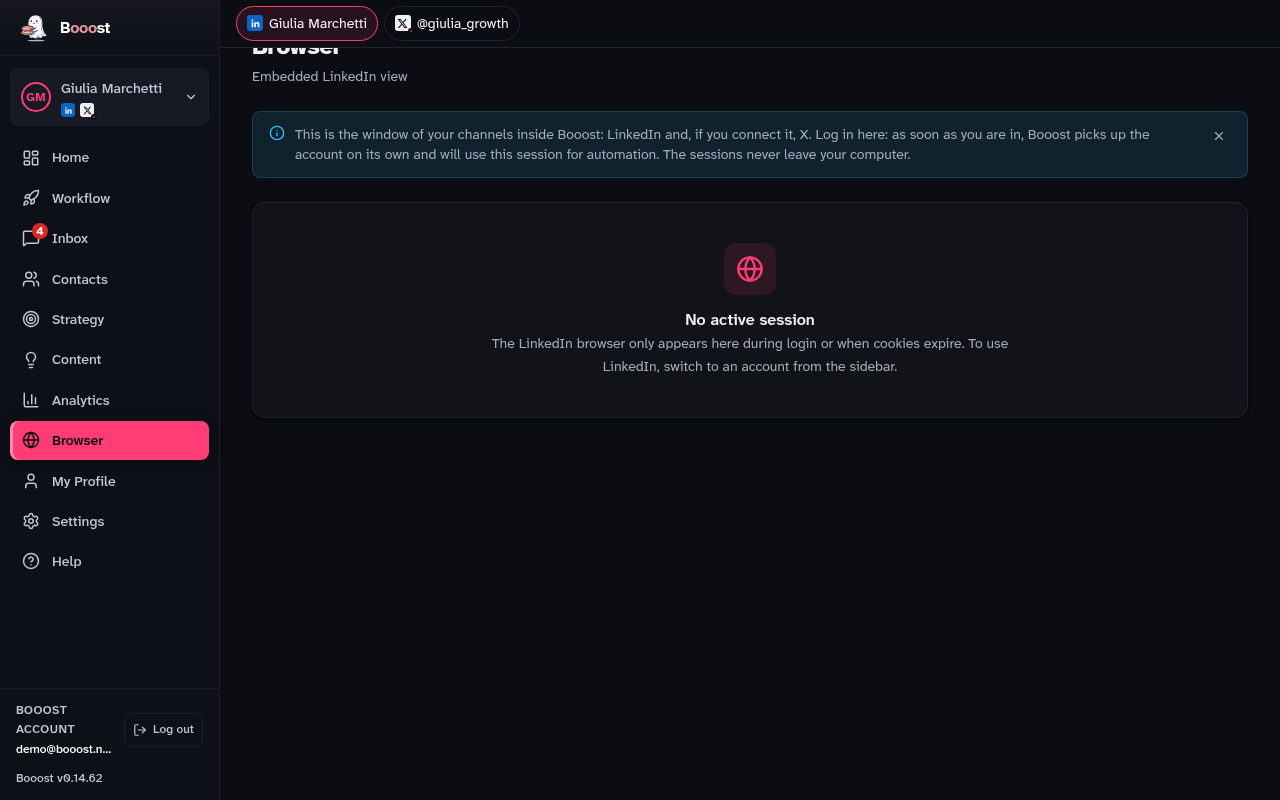
One window, one tab per channel
With more than one channel connected, a "Channel shown" bar appears above the window, one tab per channel plus one for LinkedIn if it is still missing. Only one channel's page is visible at a time; switching tabs switches which session you are looking at, it does not close the others.
Why the login happens here and nowhere else
The embedded browser is an Electron window with a session of its own, kept separate for each connected account and channel. The cookies of that session stay on your computer: they are what Booost uses to act, and they never leave the machine — no channel here uses a paid API or a stored password.
At a LinkedIn login Booost also reads the type of account — Free, Premium or Sales Navigator — because the limits LinkedIn applies differ, and so do the limits Booost imposes on itself. X has no account type: its own limits come from the channel's warm-up, in Settings → Channels.